
 hotelspot KDS · Android tablet
 Guest orders straight to your kitchen screen.
hotelspot KDS shows room service orders on a tablet in the kitchen: what came in, what is cooking, what is ready to go and what is running late.
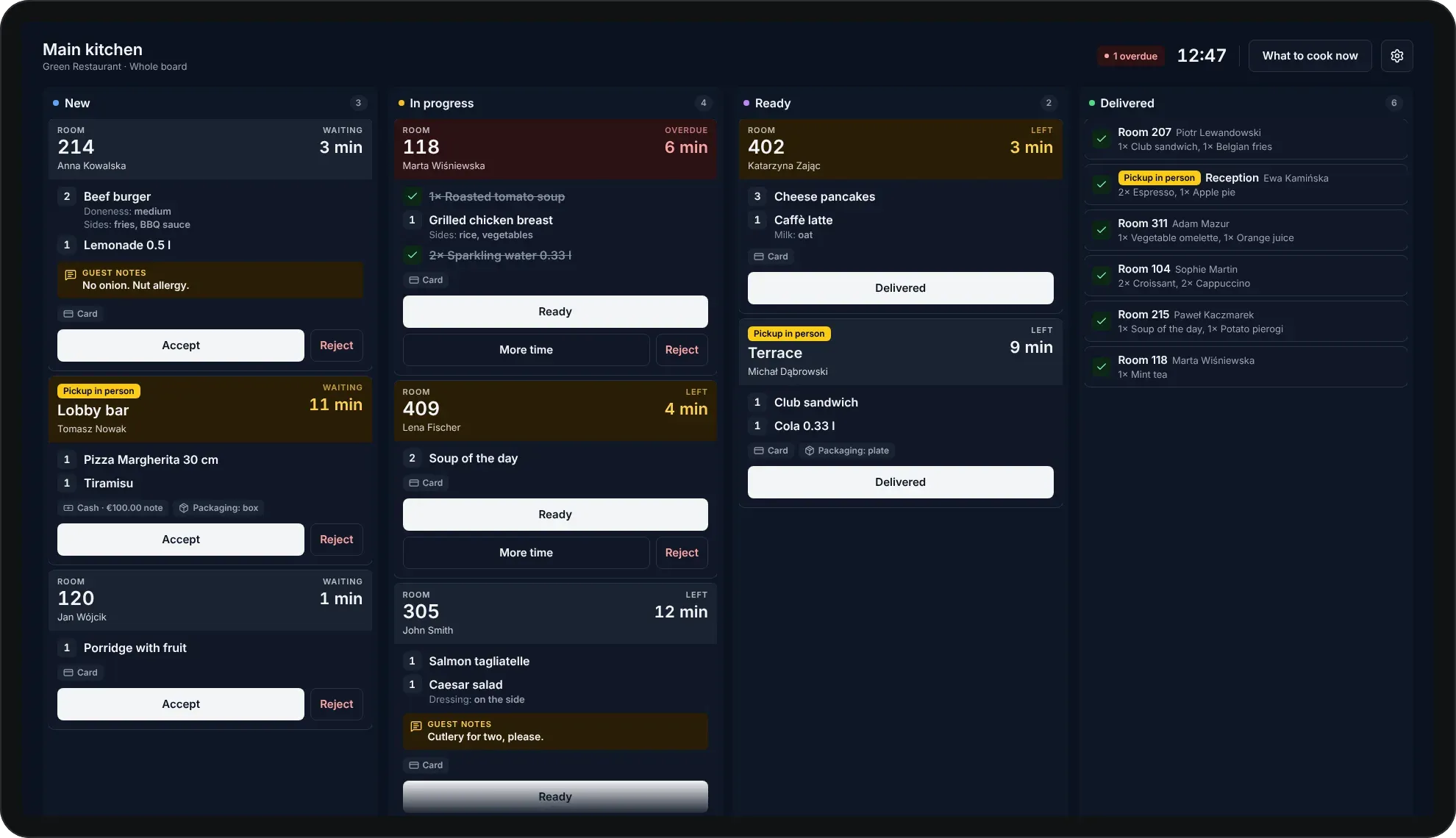
No printed tickets and no calls from the front desk. The kitchen accepts an order with a prep time, and the guest sees a countdown in their app.
hotelspot KDS
The key features of the screen
A tablet on the kitchen wall, readable from two metres away and usable with gloves on. The kitchen sees only what it needs to cook and send out.
-
New order
You hear and see every new order
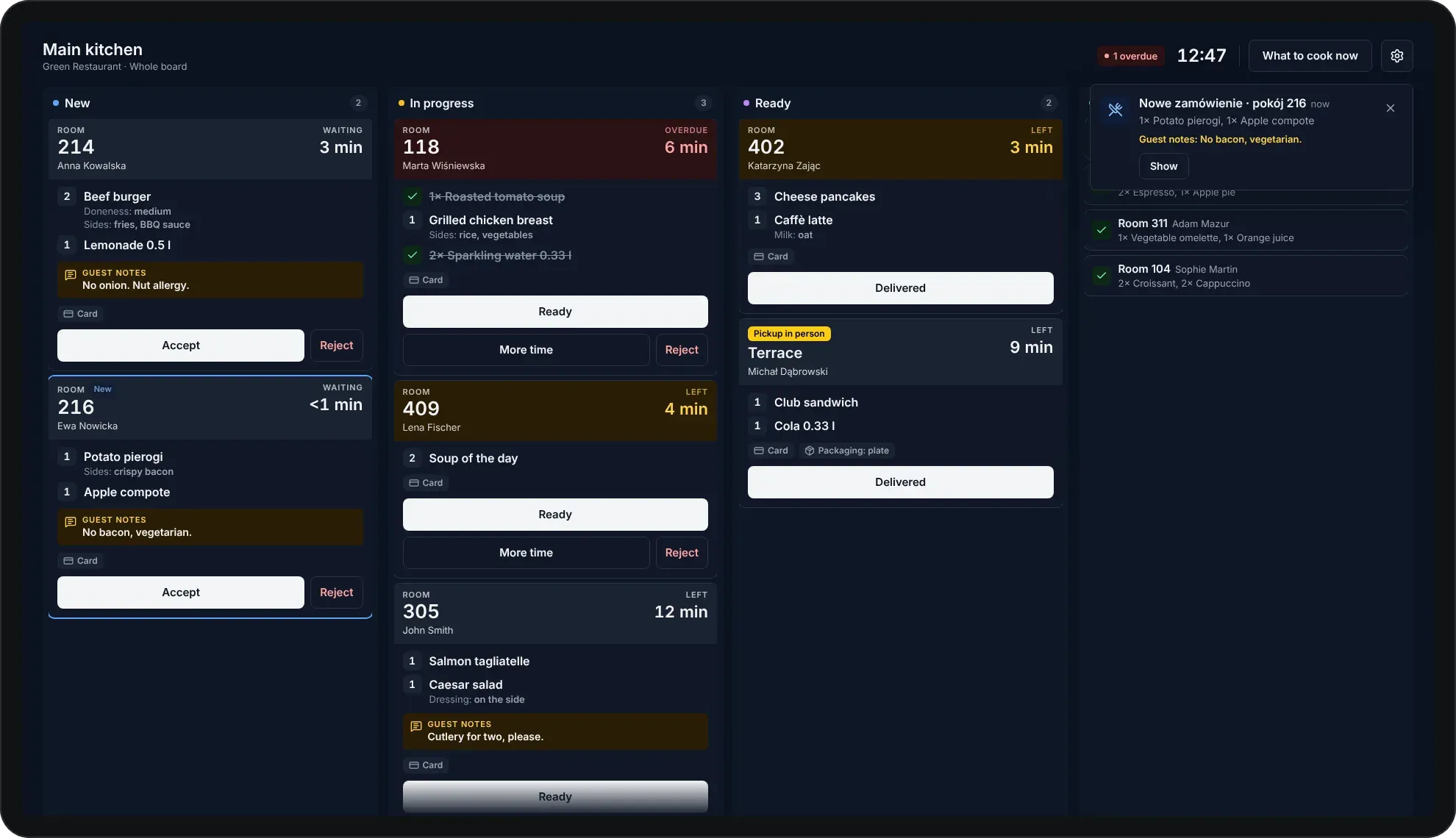
An order from the guest app appears on the board instantly. The tablet plays an alert, shows the room, items and guest notes in the corner, and the new ticket is highlighted with a frame and a New badge.
- A series of sound alerts for every new order
- A card with the items and guest notes
- Several orders at once in a single notification
-
Ticket and details
Allergies and guest notes always on top
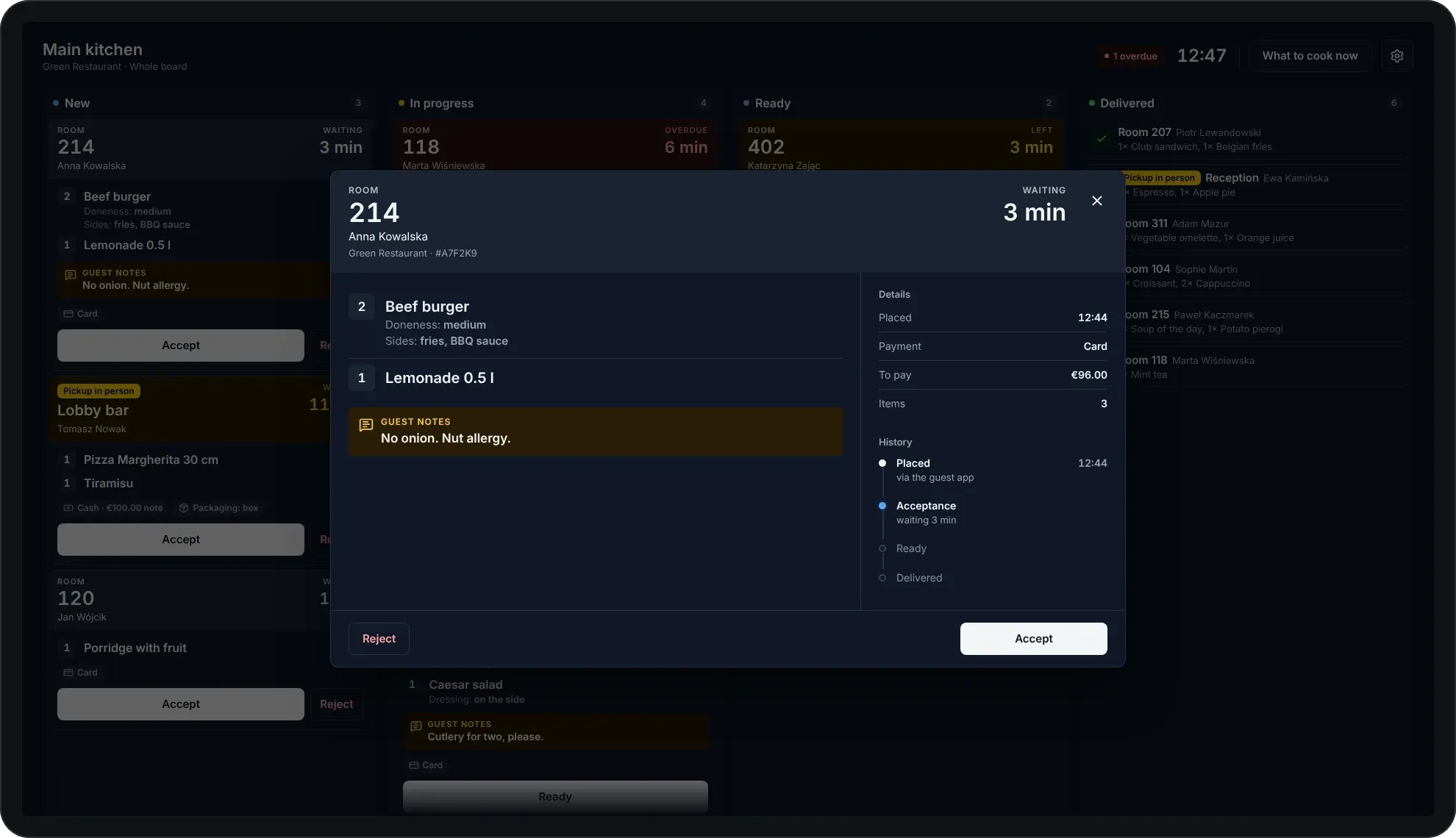
The large room number and time are readable from across the kitchen. Variants, sides and guest notes stand out, and a tap on the ticket shows the payment, amount and order history.
- Time band: grey, yellow when it gets tight, red when overdue
- Variants, sides and guest notes
- Check off finished items with a tap
-
Prep time
Accept with a prep time in one tap
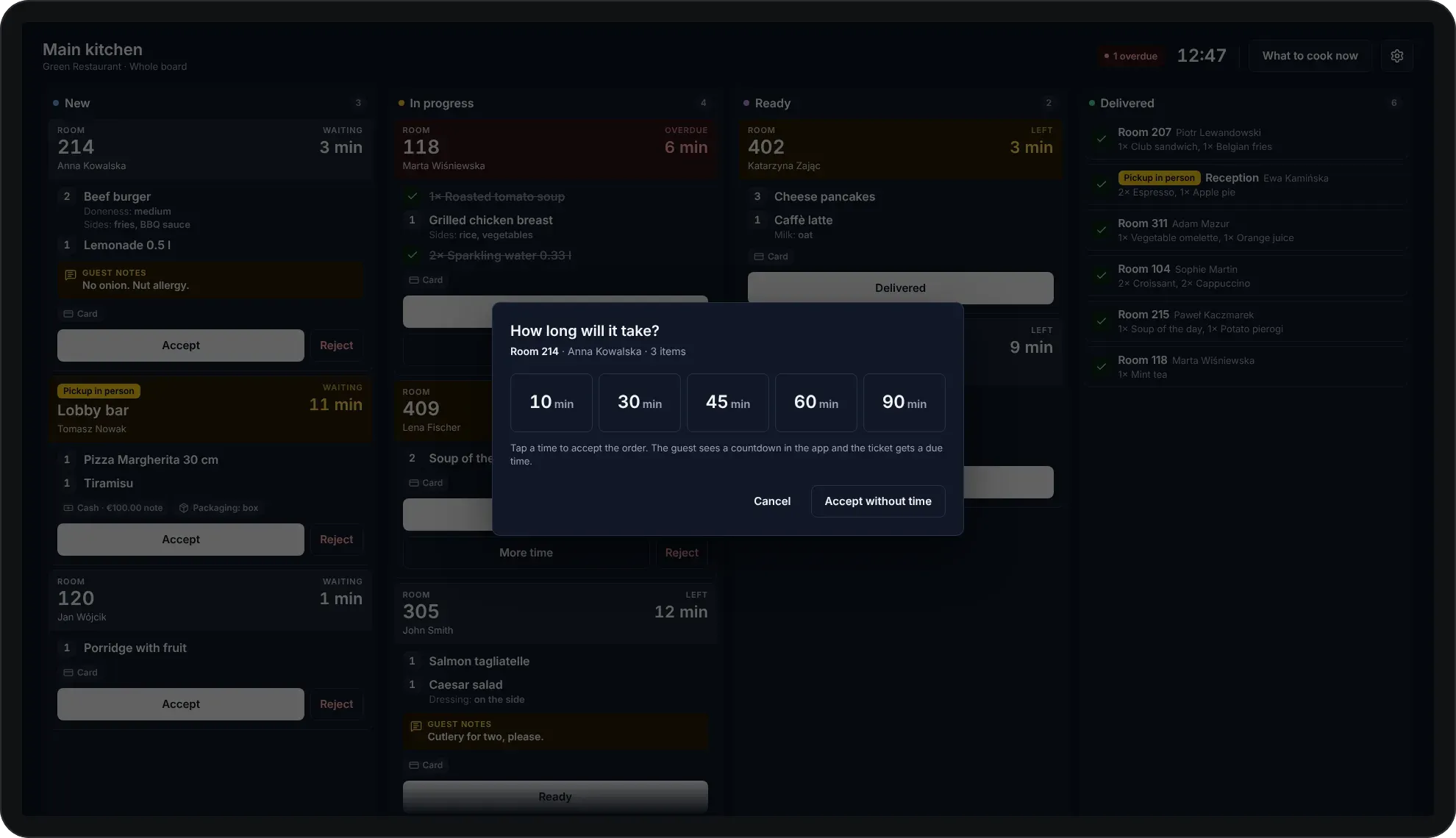
The cook picks 10, 30, 45, 60 or 90 minutes and the order is accepted. The guest sees a countdown in the app straight away, and the ticket gets a due time. When needed, the kitchen adds time or rejects the order with a reason for the guest.
- The guest sees a countdown in the app
- “More time” with a new due time for the guest
- Reject with a reason the guest will see
-
What to cook now
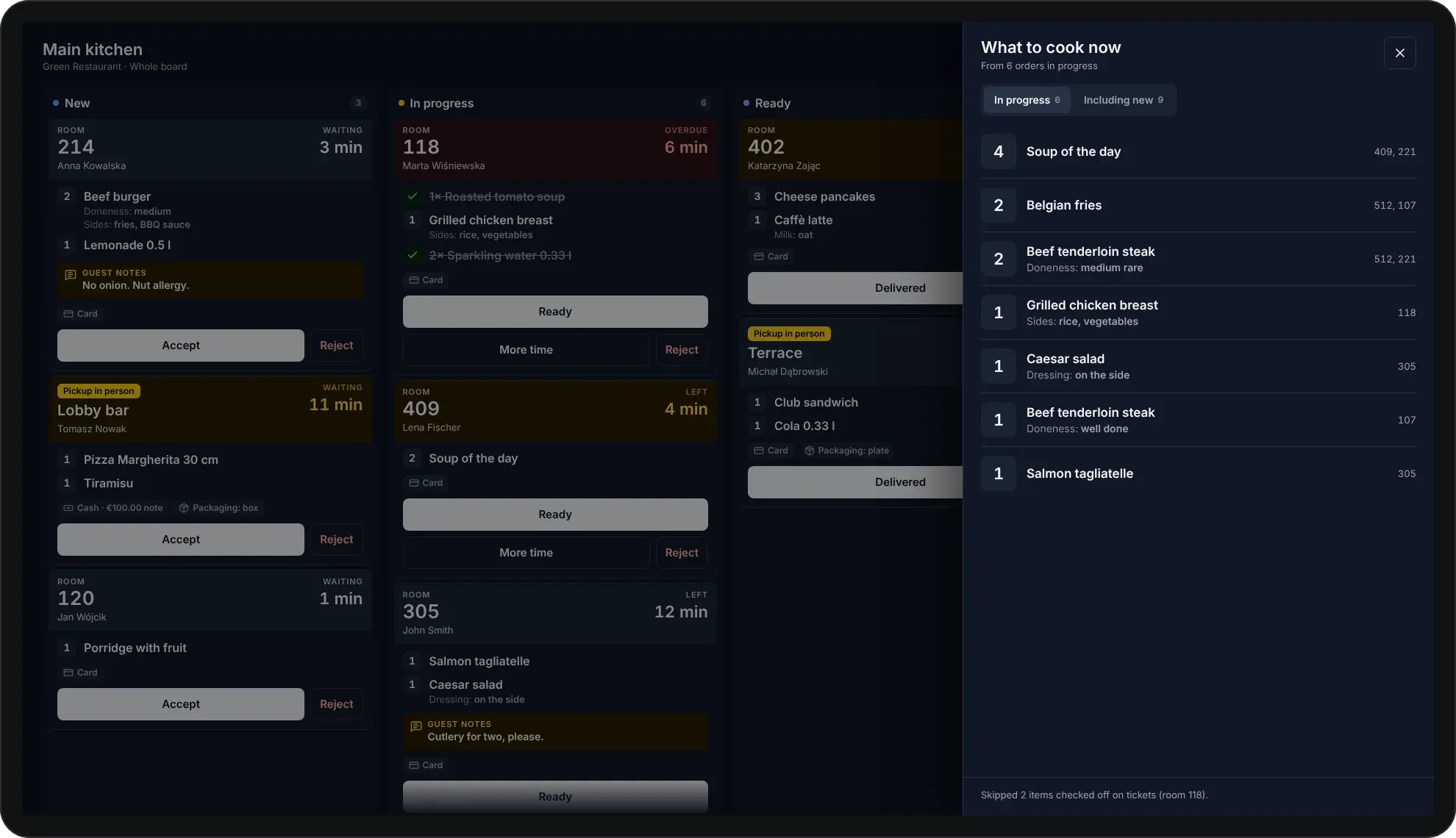
The total of everything on the stove
One button adds up the items from all orders in progress, with room numbers. The cook does not have to count soups and steaks in their head, and the board stays visible next to the list.
- Item totals with variants and rooms
- “Including new” to start a batch earlier
- Items checked off on tickets are left out
-
Setup
The tablet is ready in minutes
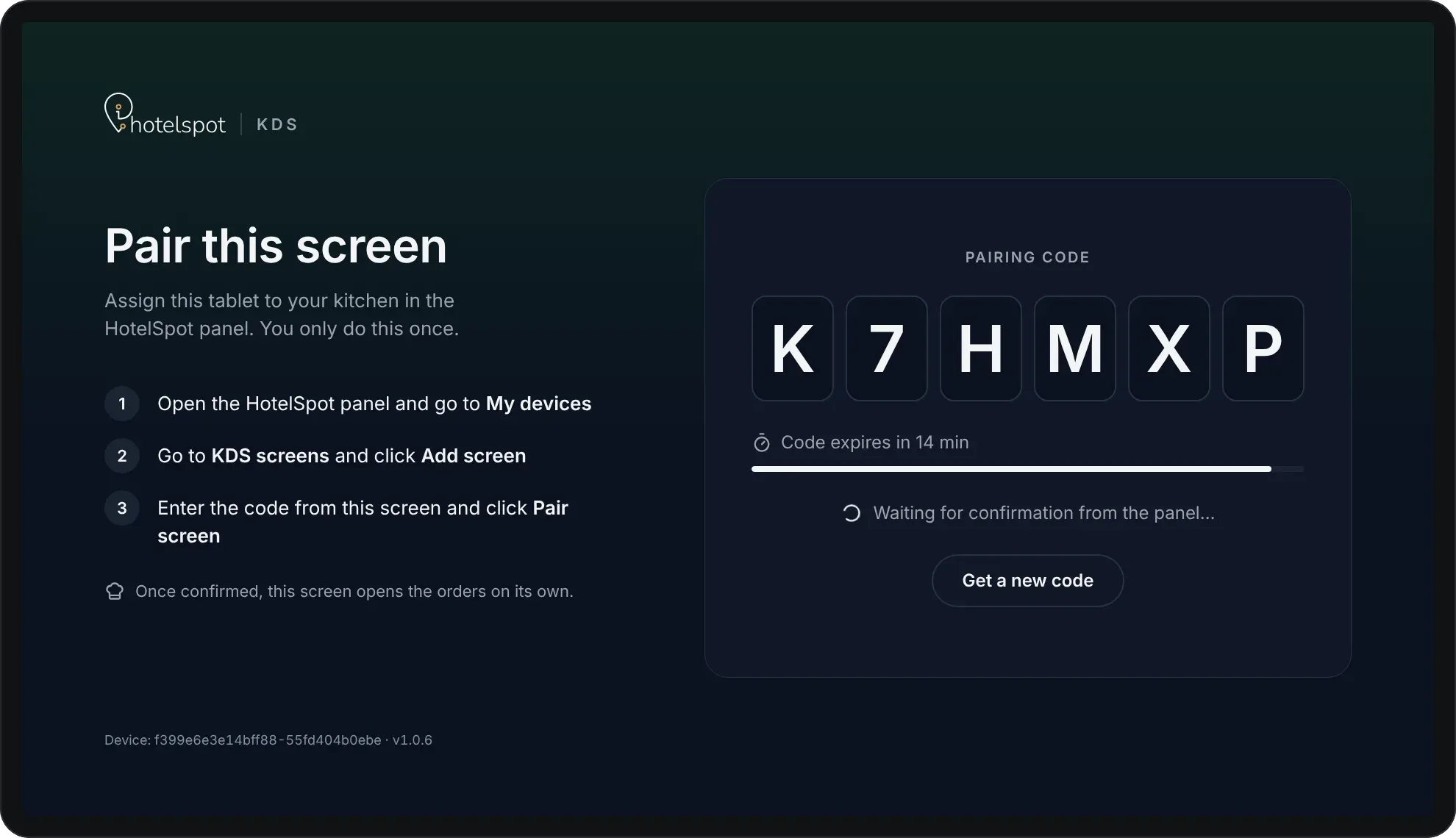
No logins or passwords in the kitchen. The tablet shows a code that you enter in the hotelspot panel, then it opens the orders on its own. The screen runs in kiosk mode, and in the settings you choose what it shows.
- One-time pairing with a code from the panel
- Modes: whole board, kitchen or pass
- Dark or light theme, English, Polish and German
All features
What else KDS can do
KDS features in four areas. Expand an area to see what it includes.
Order board 8 features MoreLess
Status columns
New, In progress, Ready and Delivered, in the same colours as in the panel.
Time band on the ticket
How long the order has waited or how long is left; yellow when it gets tight, red when overdue.
Overdue counter
A clock and the number of overdue orders in the board header.
Item check-off
A tap marks an item as done, also in the order details.
Pickup in person
A yellow badge and the pickup place, such as the lobby bar or reception.
Payment and packaging
Card or cash with the note size for change, and the packaging type.
Order details
All items, guest notes, the amount and status history with a tap on the ticket.
Delivered archive
Delivered orders collapsed into short rows and archived with one button.
Kitchen and pass 5 features MoreLess
What to cook now
Item totals from all orders in progress, with room numbers.
Kitchen mode
Without the Delivered column: accept, cook, mark ready.
Pass mode
Without the New column: a view of what is cooking and handing over ready orders.
Stations
A station screen shows only orders with its items, and the pass waits for all of them.
Several outlets on one screen
Orders from several outlets on one board, with the outlet shown on each ticket.
Actions and alerts 7 features MoreLess
Accept with a prep time
Prep time in one tap, the guest sees a countdown in the app.
More time
Add minutes to the due time, the guest gets a new countdown.
Reject with a reason
Ready-made reasons or your own text that the guest will see.
Undo
After each status change, a bar with an Undo button.
Sound alerts
A series of alerts for a new order, a single one for a cancellation or a missed due time.
Guest cancellation
The ticket leaves the board and the kitchen is told which room it was.
Connection loss
A clear banner when the tablet loses the internet, with automatic retries.
Device and settings 6 features MoreLess
Code pairing
The tablet shows a code that you confirm in the panel under My devices. No login.
Outlet set in the panel
You set the screen’s outlet in the panel, so nobody in the kitchen changes it by accident.
Sound
Turn the alerts on or off and play a sample in the screen settings.
Theme and language
Dark or light theme, English, Polish or German.
Kiosk mode
The Android tablet runs all day in landscape, without the system bar or accidental exits.
Unpairing
Unpair the tablet from the hotel with a confirmation, in the settings or in the panel.
See KDS in action
Book a free demo and see how guest orders go straight to your kitchen.
Book a demo